> For the complete documentation index, see [llms.txt](https://prosbcdocs.telcobridges.com/llms.txt). Markdown versions of documentation pages are available by appending `.md` to page URLs; this page is available as [Markdown](https://prosbcdocs.telcobridges.com/telecom-references/apis-and-integration/adding-white-or-black-listing-to-a-routing-script.md).
# Adding White or Black Listing to a Routing Script
This artilce describes how to add White or Black listing to any Routing scripts. With this script, any called or calling number prefix can be blacklisted or whitelisted. This script can be assigned globally, or per NAP. For this, you choose the "scope" to be "global" or "per\_nap". It also reads a .csv file which has the called and calling number list (default name 'black\_white\_list.csv').
A blacklisted called number set globally will block anyone trying to reach that number (or number prefix). A whitelisted calling number will only allow calls from these calling numbers in the system - all other calls will be dropped.
### Setting up White and Black Listing Scripts
To set up a Filter, the main script needs to be modified. The main script can be either simple\_routing.rb, or any other script.
First, go to the routing script section of the Web portal
```
Gateway -> Routing scripts -> Example Scripts -> simple_routing.rb [Edit]
```
Three things need to be added. At the start of the script:
```
require 'black_white_listing'
```
In the main class:
```
include BlackWhiteListing
```
```
before_filter :method => :black_white_listing, :scope => :global
```
The final script will look like this:
```
require 'base_routing'
require 'black_white_listing'
class NapGroupAndWeightRouting < BaseRouting
include BlackWhiteListing
before_filter :method => :black_white_listing, :scope => :global
route_match :call_field_name => :called
route_match :call_field_name => :calling
route_match :call_field_name => :nap
route_match :method => :match_nap_availability
route_remap :call_field_name => :called, :route_field_name => :remapped_called
route_remap :call_field_name => :calling, :route_field_name => :remapped_calling
route_remap :call_field_name => :nap, :route_field_name => :remapped_nap
end
```
### White and black listing file
The '[black\_white\_list.csv](https://docs.telcobridges.com/w/images/c/c2/Black_white_list.csv)' file needs to be formatted in a specific way. There are 4 columns: The first one indicates the calling number (or calling number prefix). The second one indicates the whether the calling number is whitelisted 'w' or blacklisted 'b'. The third one indicates the called number (or called number prefix). The last one indicates whether the prefix is whitelisted 'w' or blacklisted 'b'.
This example blacklists the calling numbers 148240000 and 148240707, and also any calls that try to reach numbers starting with 450 or 514 :
| calling | calling\_params | called | called\_params |
| --------- | --------------- | ------ | -------------- |
| 148240707 | b | | |
| 148240000 | b | | |
| | | 450 | b |
| | | 514 | b |
### To add the white and black listing file to the system
1. Click **FileDB** in the navigation panel
2. Click **Import new file**
3. Click **Browse** and select the 'black\_white\_list.csv' you wish to import.
4. Click **Import**

### To assign a white and black listing to a NAP
The scope needs to be set to "per\_nap"
```
before_filter :method => :black_white_listing, :scope => :per_nap
```
You need to add new NAP colums to assign the files to the NAPs:
```
Gateway -> Routes -> NAP Columns -> Create New NAP Column
```
**Name**: black\_white\_list **Type attributes**: dbfile **Default**: black\_white\_list.csv

### Add/Edit Black and White List with RestFul API
You can use the Add/Edit black and white list file in your system with RestFul API using JSON format. The JSON format must be the following:
{ "***meta***": { "version": "3.1.135", "src\_path": "" }, "name": "Black\_white\_list.csv", "content": "calling,calling\_params,called,called\_param\r\n3016824959,b,,\r\n,,450,b\r\n,,514,b\r\n" }
* name: digitmap file name
* \r\n: new line. Each digit/digits you entered must start with the new line.
#### Add Black and White List with RestFul API
You can add a new Black and White List with RestFul API file with the POST command:
POST
ProSBC will create a new Black and White List file from the name in the JSON file.
Example: We use the Postman tool in this example and the URL is:
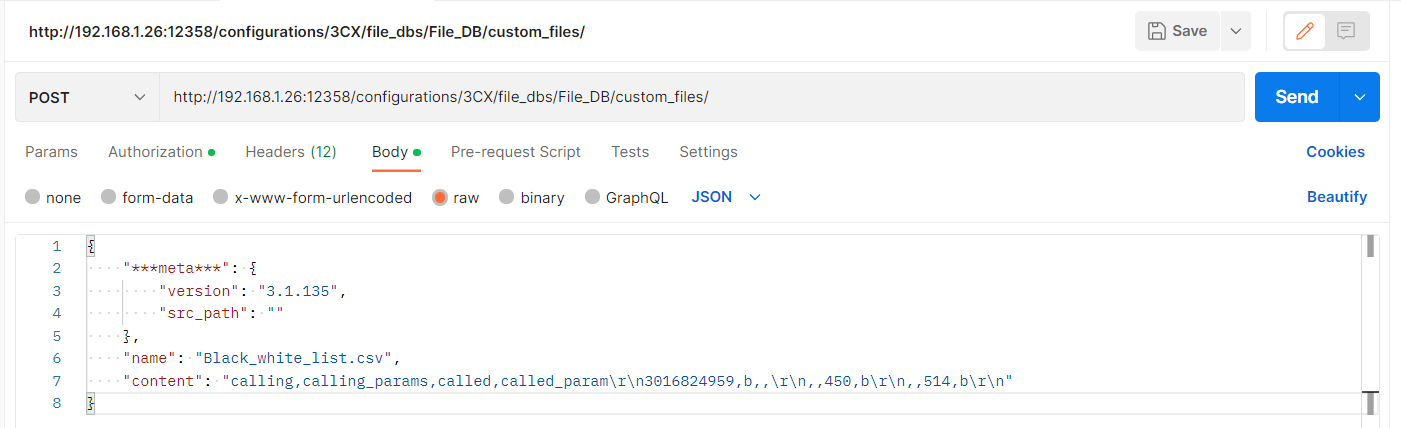
If the import is successful you will see the following information in the Postman Tool

#### Edit Black and White List with RestFul API
You can add a new Black and White List with RestFul API file with the PUT command:
PUT
Example: We use the Postman tool in this example and the URL is:

If the import is successful you will see the following information in the Postman Tool

You can get more information about how to use RestFul API and Postman Tool from the following link [Northbound\_interface:RESTful](https://github.com/telcobridges-main/tmedia-wiki/tree/main/reference/api/northbound-interface-restful-api/README.md)
---
# Agent Instructions
This documentation is published with GitBook. GitBook is the documentation platform designed so that both humans and AI agents can read, navigate, and reason over technical content effectively. Learn more at gitbook.com.
## Querying This Documentation
If you need additional information that is not directly available in this page, you can query the documentation dynamically by asking a question.
Perform an HTTP GET request on the current page URL with the `ask` query parameter, and the optional `goal` query parameter:
```
GET https://prosbcdocs.telcobridges.com/telecom-references/apis-and-integration/adding-white-or-black-listing-to-a-routing-script.md?ask=&goal=
```
`ask` is the immediate question: it should be specific, self-contained, and written in natural language.
`goal` is optional and describes the broader end goal you are ultimately trying to accomplish on behalf of the user. GitBook uses it to tailor the answer towards what is most useful for that goal.
The response will contain a direct answer to the question and relevant excerpts and sources from the documentation.
Use this mechanism when the answer is not explicitly present in the current page, you need clarification or additional context, or you want to retrieve related documentation sections.