> For the complete documentation index, see [llms.txt](https://prosbcdocs.telcobridges.com/llms.txt). Markdown versions of documentation pages are available by appending `.md` to page URLs; this page is available as [Markdown](https://prosbcdocs.telcobridges.com/configuration-details/configuration-by-use-case/ms-teams-direct-routing-sbc-example-configuration.md).
# MS-Teams Direct Routing SBC Example Configuration
Configure ProSBC as the session border controller for Microsoft Teams Direct Routing against an existing Microsoft 365 domain, and enable users for voice.
## Introduction
This document provides instructions on how to configure your existing Microsoft 365 domain with the ProSBC as an SBC for Direct Routing.
## Official documentation
* [Configure Direct Routing](https://learn.microsoft.com/en-us/microsoftteams/direct-routing-configure) – High-level steps for connecting SBC to Teams and enabling users.
* [Connect your SBC to Direct Routing](https://learn.microsoft.com/en-us/microsoftteams/direct-routing-connect-the-sbc) – Detailed instructions for pairing SBC with Teams using Admin Center or PowerShell.
## Prerequisites
Refer to [Plan Direct Routing](https://learn.microsoft.com/en-us/microsoftteams/direct-routing-plan) – Infrastructure, licensing, and domain requirements.
| Prerequisites | Example used by this document |
| ---------------------------------------------------------------------------------------------------------------------------------------------------------------------------------------------- | ---------------------------------------------------------------------------------------------------------------------------------------------------------------------------------------------------------- |
|
MS365 Licensing requirements
Microsoft Teams Phone license assigned to users
|
The “Microsoft Teams Essentials with Phone” is used and assigned to three MS users:
|
|
MS365 : Domain, DNS and certificate requirements
Public FQDN for SBC and public-signed certificate
TLS 1.2 support
MS365 users assigned to that domain
|
The domain "contoso.com" has been added to Microsoft 365.
“prosbc.contoso.com” is the registered ProSBC FQDN.
|
|
ProSBC instance hosting
world-wide web reacheable
configured with public IP and FQDN
network/firewall configuration for public access
| |
## MS365 / MS-Teams Configuration
While most of the official documentation is using “PowerShell” commands, the majority of the configuration can be done through the [MS365 Admin Portal](https://admin.cloud.microsoft/) and [MS-Teams Admin Portal](https://admin.teams.microsoft.com/).
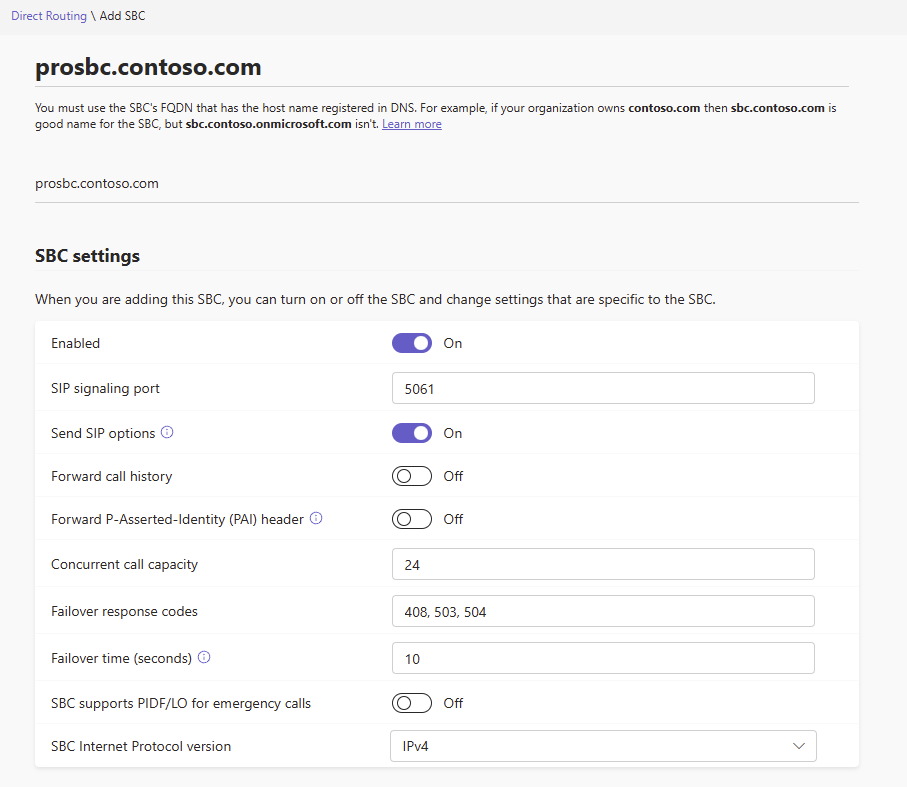
#### Create PSTN Gateway in Teams Admin Center or via PowerShell.
**Reference**:
**Where**: Microsoft Teams admin center > Voice > Direct Routing > SBCs (tab)
**What to do**: Add an SBC with the following configuration:
* FQDN and TLS SIP port used for SIP trunking between the ProSBC and MS-Teams cloud network
* Send SIP options: On
* Forward call history: Off
* Forward PAI header: Off
* SBC Internet Protocol version: IPv4
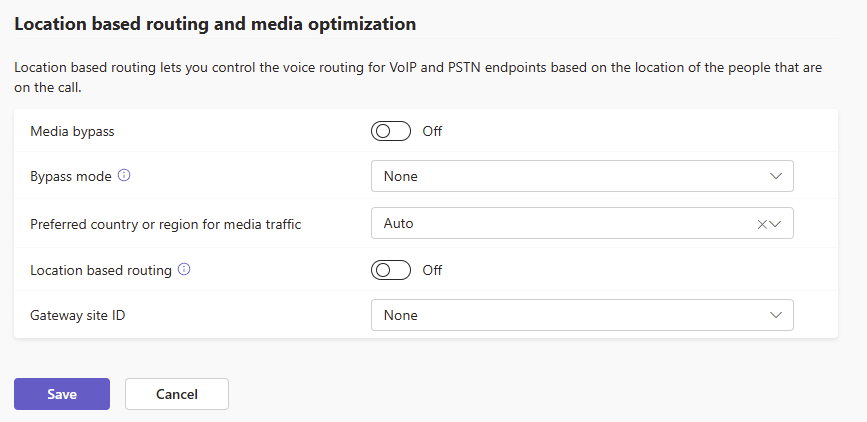
* Media bypass: Off
* Bypass mode: None
* All other parameters can be decided
* Concurrent call capacity
* Faillover response codes/time
* Preferred country/region for media traffic
* Location based routing
#### Assign SBC to voice routing policies
**Reference**:
*
*
**Where**: Microsoft Teams admin center > Voice > Direct Routing > Voice routes (tab)
**What to do**:
* Add routes with number patterns allowed to be used by MS-Teams users for calls toward PSTN
* Assign these routes to the SBC
**Example**:
For Toll-free numbers (e.g. 1-800-555-5555), the configuration may be like that:
* Dialed number pattern: `^+18(00|33|44|55|66|77|88)[2-9]\d{6}$`
* SBCs enrolled: prosbc.contoso.com
* PSTN usage records: NANP-TollFree
#### Configuring MS365 users with MS-Teams parameters
**Reference**:
**Where**: Microsoft Teams admin center > Users > Manage users
**What to do**:
* Under the “Account” tab, do one of the following
* Assign a phone number (“Direct Routing” type) to each user
* Enable the “Enterprise Voice” (this user won’t have the full telephony service however)
{% hint style="info" %}
**Enterprise Voice** vs **Direct Routing number type**
Any MS-Teams user can get an incoming SIP call based on its user account identification (e.g. `info@contoso.com`). From ProSBC routing rules, this can be done by enforcing “remapped called” attribute with that user account identification.
```
INVITE sip:info@contoso.com SIP/2.0\r\n
To: \r\n
```
With a phone number assigned, the incoming SIP call can target the phone number itself instead of the user account.
```
INVITE sip:18005555555@prosbc.contoso.com:5060 SIP/2.0\r\n
To: \r\n
```
{% endhint %}
## ProSBC Configuration
Here’s a short list of what must be done on the ProSBC
#### FQDN and certificates
**Where**: ProSBC > Security > Certificates
References:
*
*
**What to do**: Add all certificates needed for TLS connection with MS-Teams
* As “Local” type, a public-signed certificate for the ProSBC itself and its FQDN
* As “Trusted”, the following PEM-format DigiCert certificates coming from MS list:
* [https://cacerts.digicert.com/DigiCertTLSECCP384RootG5.crt.pem]()
* [https://cacerts.digicert.com/DigiCertTLSRSA4096RootG5.crt.pem]()
* [https://cacerts.digicert.com/DigiCertGlobalRootCA.crt.pem]()
* [https://cacerts.digicert.com/DigiCertGlobalRootG2.crt.pem]()
* [https://cacerts.digicert.com/DigiCertGlobalRootG3.crt.pem]()
* As “Trusted”, the converted PEM-format Microsoft certificates:
* [Microsoft ECC Root Certificate Authority 2017](https://www.microsoft.com/pkiops/certs/Microsoft%20ECC%20Root%20Certificate%20Authority%202017.crt)
* [Microsoft RSA Root Certificate Authority 2017](https://www.microsoft.com/pkiops/certs/Microsoft%20RSA%20Root%20Certificate%20Authority%202017.crt)
{% hint style="info" %}
**(When needed) Converting certificate to PEM format**
with openssl, the command command line can be used to generate the .pem file:
```
openssl x509 -in "Microsoft ECC Root Certificate Authority 2017.crt" -out MicrosoftECCRootCA2017.pem
```
{% endhint %}
{% hint style="warning" %}
The list of CA certificate can change, because of date expiration or other reasons. Always give a look at the official documentation for the actual list of required CA. The page states instructions about that.
{% endhint %}
#### TLS Profile
**Where**: ProSBC > Security > TLS Profile
**What to do**: Create a “Level 1” TLS profile using the local certificate and bundled with the trusted certificates. The “Peer authentication” must be enabled.
#### SIP stack configuration
**Where**: ProSBC > SIP
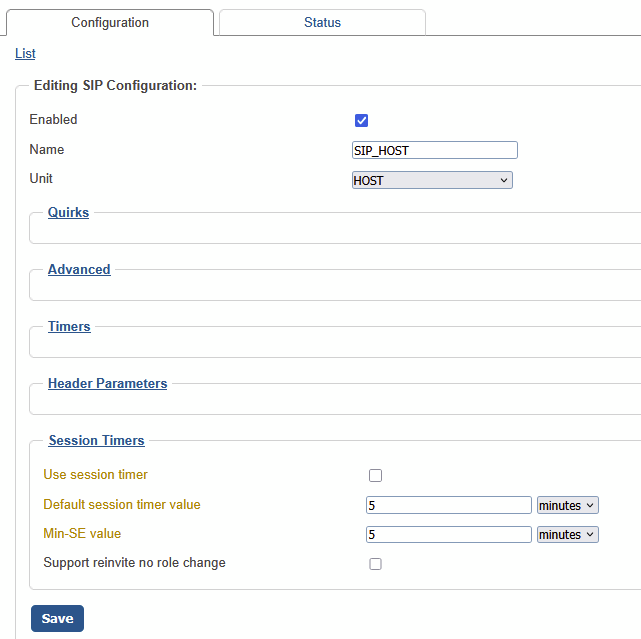
**What to do**: Have a SIP stack on the host
* Create a TLS transport dedicated to connect with the MS-Teams servers. The TLS transport must me assigned with the TLS profile previously created for MS-Teams.
*
```
```
* To avoid interoperability issues with different SIP peers, disable “**Use session timer**”.
#### Public IP and FQDN for NAT traversal
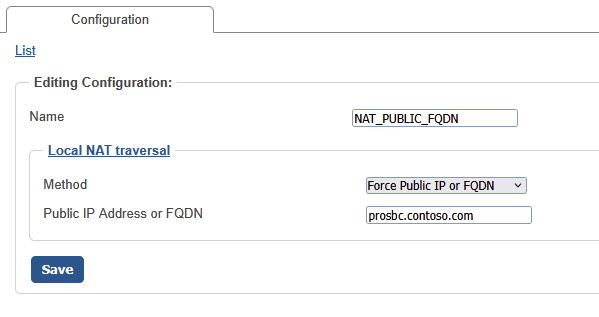
**Where**: ProSBC > Advanced Networking > NATs
**What to do**: Create two “**Force Public IP or FQDN**” entries: one for the Public IP and one for the FQDN
{% hint style="warning" %}
This may be unneeded if the public IP is directly available to the IP network interface (no NAT topology)
{% endhint %}
#### Profile configuration
**Where**: ProSBC > Profiles
**What to do**: Create a dedicated profile for the NAP and/or route that will be connected to MS-Teams servers:
* VOIP > Media Relay >
* Allow low-delay media relay := **enabled** (otherwise following RTP and SRTP parameters are hidden)
* Use RTP anchoring := **enabled**
* RTP security mode := **Secure** (otherwise following SRTP parameters are hidden)
* SRTP relay behavior := **Re-encrypt**
* SRTP key policy := **Reuse**
* VOIP > SIP > Advanced parameters >
* SDP generation options := **Generate all SDP parameters**
* SDP combining options := *none selected*
* Forward SIP hold SDP direction mode := **Force Inactive**
* VOIP > SIP > Allowed SIP methods >
* REFER := **disabled**
* VOIP > RTP and Audio > RTCP >
* Enabled := **enabled**
* RTCP multiplexing := **disabled**
#### NAP configuration
**Where**: ProSBC > NAP
**What to do**: Create three NAPs. Each of them have by default the profile configured above.
* The proxy for each NAP:
1. `sip.pstnhub.microsoft.com:5061`
2. `sip2.pstnhub.microsoft.com:5061`
3. `sip3.pstnhub.microsoft.com:5061`
* Assigned the SIP TLS transport created from previous step
* Poll Remote Proxy := **enabled**
* Proxy Environment > Microsoft Teams Direct Routing := **enabled**
* NAT > Remote Method for RTP := None
* NAT > Remote Method for SIP := None
* NAT > Local NAT Method for RTP := *the public IP NAT from previous step*
* NAT > Local NAT Method for RTP := *the FQDN NAT from previous step*
* Access Control List > Add these IP/Mask:
* `52.112.0.0/14`
* `52.120.0.0/14`
{% hint style="info" %}
The firewall must allow all incoming SIP messages coming from the Microsoft IP ranges. See [SIP signaling: FQDNs](https://learn.microsoft.com/en-us/microsoftteams/direct-routing-plan#sip-signaling-fqdns) for reference
{% endhint %}
#### Routes configuration
**Where**: ProSBC > Gateway > Routes
**What to do**: For each of the three NAPs, create an inbound and outbound rules
For routes towards MS-Teams server:
* filled the **Remapped Called** with the MS-Teams user identification (user account or phone number)
* enabled the **forward\_sip\_domain** and **forward\_sip\_parameters** parameters.
* Set a priority value to each of MS-Teams NAPs: lowest value has the most priority
{% hint style="info" %}
**`sip.pstnhub.microsoft.com`:** Global FQDN, must be tried first.
* When the SBC sends a request to resolve this name, the Microsoft Azure DNS servers return an IP address pointing to the primary Azure datacenter assigned to the SBC. The assignment is based on performance metrics of the datacenters and geographical proximity to the SBC. The IP address returned corresponds to the primary FQDN.
**`sip2.pstnhub.microsoft.com`:** Secondary FQDN, geographically maps to the second priority region.
**`sip3.pstnhub.microsoft.com`:** Tertiary FQDN, geographically maps to the third priority region.
See [SIP signaling: FQDNs](https://learn.microsoft.com/en-us/microsoftteams/direct-routing-plan#sip-signaling-fqdns) for reference
{% endhint %}
Alternatively, we can use the [label routing](https://docs.prosbc.com/configuration-details/configuration-by-web-portal-category/call-routing#label-routing) modules to route a specific list of numbers to the Teams network.
---
# Agent Instructions
This documentation is published with GitBook. GitBook is the documentation platform designed so that both humans and AI agents can read, navigate, and reason over technical content effectively. Learn more at gitbook.com.
## Querying This Documentation
If you need additional information that is not directly available in this page, you can query the documentation dynamically by asking a question.
Perform an HTTP GET request on the current page URL with the `ask` query parameter, and the optional `goal` query parameter:
```
GET https://prosbcdocs.telcobridges.com/configuration-details/configuration-by-use-case/ms-teams-direct-routing-sbc-example-configuration.md?ask=&goal=
```
`ask` is the immediate question: it should be specific, self-contained, and written in natural language.
`goal` is optional and describes the broader end goal you are ultimately trying to accomplish on behalf of the user. GitBook uses it to tailor the answer towards what is most useful for that goal.
The response will contain a direct answer to the question and relevant excerpts and sources from the documentation.
Use this mechanism when the answer is not explicitly present in the current page, you need clarification or additional context, or you want to retrieve related documentation sections.